"Cannot connect to the Docker daemon": how to fix it
The `docker` command is only a client, and this error means it got no answer from the Docker daemon (`dockerd`). Most often the daemon is stopped, so `sudo systemctl start docker` fixes it. If not, the daemon failed to start because of its configuration, or the client is pointed at the wrong place.
On this page
What it means
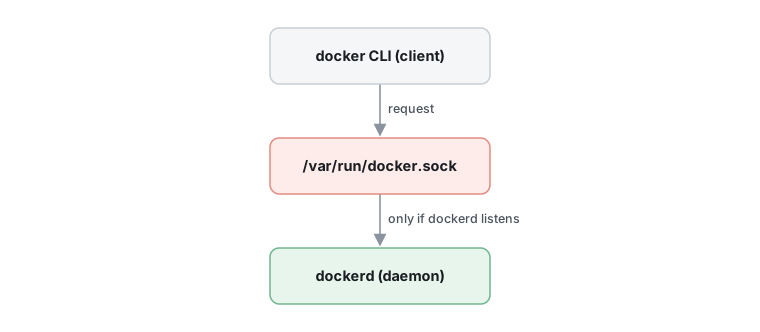
When you run docker ps or docker run, you are not talking to Docker directly. The docker program is a client that sends requests to a background service called dockerd. By default it reaches that service through a Unix socket at /var/run/docker.sock.
The full message usually reads Cannot connect to the Docker daemon at unix:///var/run/docker.sock. Is the docker daemon running? Older versions say Is 'docker daemon' running on this host? Either way, nothing usable is answering on that endpoint. The daemon is not running, or the client is looking in the wrong place.
Symptoms and causes
You are likely dealing with this problem if:
- Every
dockercommand fails straight away with the message above. docker infofails with the same message.
The usual causes, most common first:
- The daemon is not running
- The service is stopped or not enabled at boot.
- The daemon failed to start because of its configuration
- The same setting is given both as a
dockerdflag and in/etc/docker/daemon.json, or ahostskey indaemon.jsonclashes with the-Hflag that systemd passes by default on Debian and Ubuntu. Docker also lists an old kernel (before 3.10) or missing kernel modules, and the out-of-memory killer stopping the daemon. - The client points at the wrong endpoint
- A leftover
DOCKER_HOSTenvironment variable sends the client somewhere other than the socket your daemon listens on.
How to fix it
Work through these in order. They start with the quickest, safest checks and move to deeper repairs; stop as soon as the problem is gone.
1.Check whether the daemon is running
This tells you in a few seconds whether the daemon is stopped or the problem lies elsewhere.
- Ask the daemon directly. If this prints server details, the daemon is fine and you should look at the other fixes.
docker info - On a systemd-based Linux system, check the service state.
sudo systemctl is-active docker - On systems without systemd, use the service command instead.
sudo service docker status - You can also look for a
dockerdprocess.ps aux | grep dockerd
2.Start the daemon
A stopped daemon is the most common cause.
- Start the service.
sudo systemctl start docker - To have it start at every boot, enable it. Debian and Ubuntu already do this by default.
sudo systemctl enable docker.service containerd.service
3.Check for a DOCKER_HOST override
If the client is aimed at a different endpoint than the one your daemon listens on, it reports the daemon as unreachable even though it is running.
- See whether
DOCKER_HOSTis set.env | grep DOCKER_HOST - If it is set by mistake, clear it for this shell, then remove the line that sets it from
~/.bashrcor~/.profileso it does not come back.unset DOCKER_HOST
4.Find out why the service will not start
If starting the service fails or it stops again at once, the service status and log name the reason.
Before you start: Editing service configuration can stop Docker from starting at all. Copy any file you change (for example /etc/docker/daemon.json) to a backup first.
- Look at the service status and its most recent log lines.
sudo systemctl status docker - If the log says directives are "specified both as a flag and in the configuration file", keep the setting in only one place. The
dockerdflags are on theExecStartline of the Docker systemd unit (or a drop-in file that overrides it), and the other copy is in/etc/docker/daemon.json. Remove the setting from one of them. - Only if the log shows a conflict between a
hostskey indaemon.jsonand the-Hflag from systemd: create the drop-in directory, then open the file in an editor with root rights.sudo mkdir -p /etc/systemd/system/docker.service.d sudoedit /etc/systemd/system/docker.service.d/docker.conf - Put this content in the file and save it.
[Service] ExecStart= ExecStart=/usr/bin/dockerd - Reload systemd and restart Docker.
sudo systemctl daemon-reload
sudo systemctl restart docker
Check that it worked
docker infoprints Client and Server sections without an error.docker run hello-worldruns without the daemon message.- After a reboot,
sudo systemctl is-active dockerstill reportsactive.
If it still fails
- Re-read the output of
sudo systemctl status docker. It usually names the exact setting or resource that stops the daemon. - Check the other causes Docker lists for a daemon that will not run: a kernel older than 3.10 or missing kernel modules, and the out-of-memory killer stopping
dockerd. - Read the Docker daemon troubleshooting page linked below for the full list of causes.
Questions
Why do I still get this error after installing Docker?
Installing only puts the files in place. The daemon still has to be running, so start it with sudo systemctl start docker. Debian and Ubuntu start and enable it automatically.
Sources
- Troubleshoot the Docker daemonOfficial · Docker Docs
- Linux post-installation steps for Docker EngineOfficial · Docker Docs
- How to fix "Cannot connect to the Docker daemon ... Is the docker daemon running?" · Better Stack