Nginx 504 Gateway Timeout: causes and how to fix it
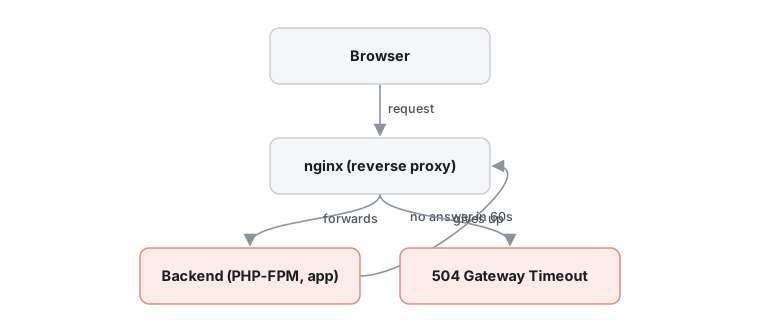
Nginx shows 504 Gateway Timeout when the backend it forwards requests to (PHP-FPM, Node, gunicorn and so on) does not send a response within the configured timeout, 60 seconds by default. Read the error log, test the backend directly, then fix the slow application or raise the timeout for the slow location only.
On this page
What it means
A site running behind nginx often has a second program doing the real work: PHP-FPM, a Node app, gunicorn, a Java service or another API. Nginx sits in front as a reverse proxy and hands each request to that program. A 504 means nginx waited for the program, heard nothing within the allowed time, and told the visitor it had given up.
This is different from a 502 Bad Gateway. With a 502 the backend did answer, but the answer was invalid or the connection was refused or reset. With a 504 there was silence.
The nginx documentation does not use the phrase "504 Gateway Timeout" for its timeout settings, so linking the error to those directives is the standard interpretation rather than a vendor-published list. The steps below follow it.
Symptoms and causes
You are likely dealing with this problem if:
- The browser shows "504 Gateway Time-out" on an nginx error page, usually after about 60 seconds.
- Slow requests (reports, uploads, heavy queries) fail, while quick pages still load.
- The nginx
error.loghas a timeout entry for the upstream at the time of the failed request. - If the delay is not close to 60 seconds, a custom timeout is set, or a CDN or load balancer in front of nginx is timing out first.
The usual causes, most common first:
- The backend is too slow
- A long query, an external API call or a heavy script runs longer than
proxy_read_timeoutorfastcgi_read_timeout, both 60 seconds by default. The timer applies between two successive reads, not to the whole response. - The backend is overloaded
- With PHP-FPM,
pm.max_childrencaps how many requests run at once. Extra requests wait in a queue until nginx times out. - The backend is hung, crashed or restarting
- A deadlocked or restarting application never answers, so nginx waits until the timeout.
- The upstream cannot be reached
- A firewall dropping packets, a host that is down or an unreachable network gives a connect timeout.
proxy_connect_timeoutdefaults to 60 seconds, and the docs say it usually cannot exceed 75 seconds. - A timeout in another layer
- A CDN, cloud load balancer or second proxy in front of nginx may have a shorter timeout than nginx itself.
- PHP's own limits
max_execution_timeandrequest_terminate_timeoutcan stop a script. That more often shows up as a 502 or a cut-off response than a 504, but the limits interact with nginx's timeout.
How to fix it
Work through these in order. They start with the quickest, safest checks and move to deeper repairs; stop as soon as the problem is gone.
1.Read the error log around the failed request
The log entry names what nginx was doing when it gave up, which tells you whether the problem is connecting to the backend or waiting for its answer.
- Watch the nginx error log while you reproduce the 504.
sudo tail -f /var/log/nginx/error.log - Find the timeout entry for your request and read what it says nginx was doing at that moment (connecting, sending the request or waiting for the response). The exact wording can differ between versions and systems, so go by the meaning.
2.Test the backend directly, without nginx
If the application is just as slow when called directly, nginx is not the problem and the application needs fixing.
- Request the same path straight from the backend, replacing the port and path with yours.
curl -v -m 120 http://127.0.0.1:PORT/path - If it is slow or hangs, look at the application itself: slow queries, external calls, stuck workers. For PHP-FPM, check the pool status and the slow log.
3.Raise the timeouts for the slow location only
Useful for genuinely long jobs or as a stopgap while the backend is fixed.
Before you start: Back up the config file first (for example copy it to a .bak file). Raising timeouts only hides a slow backend and keeps connections tied up longer. Apply it to the specific location, not globally.
- Edit the relevant location block. Keep the connect timeout short so unreachable upstreams still fail fast.
location /report/ { proxy_pass http://backend; proxy_read_timeout 300s; proxy_send_timeout 300s; proxy_connect_timeout 10s; } # FastCGI / PHP-FPM: location ~ \.php$ { fastcgi_pass unix:/run/php/php-fpm.sock; fastcgi_read_timeout 300s; } - Test the configuration and reload nginx.
sudo nginx -t && sudo systemctl reload nginx - For uwsgi or gRPC backends the matching directives are
uwsgi_read_timeoutandgrpc_read_timeout(both 60 seconds by default).
4.Check the PHP limits behind nginx
If PHP stops the script first, raising only nginx may change nothing.
Before you start: Note the current values before changing them so you can roll back.
- Raise
max_execution_timein the PHP configuration if the script needs longer. - Check
request_terminate_timeoutin the FPM pool (0 means off). The PHP docs describe it as the fallback whenmax_execution_timefails to stop a script.
5.Add backend capacity
If requests queue because all workers are busy, longer timeouts only delay the failure.
Before you start: Raising worker counts uses more memory. Increase it only as far as the server's RAM allows, or the machine may start swapping.
- Raise
pm.max_childrenin the PHP-FPM pool so it covers peak traffic, within available memory. - Where possible, scale out to more backend servers, or move long jobs to a queue or background worker so the web request returns quickly.
6.Add failover between upstream servers
With several upstream servers, nginx can try another one when one times out.
Before you start: Retrying non-idempotent requests such as POST can run an operation twice. By default nginx does not retry non-idempotent requests (POST, LOCK, PATCH) after they have been sent to an upstream server, unless non_idempotent is set in proxy_next_upstream. Leave that off unless you are sure.
proxy_next_upstreamdefaults toerror timeout, so a timeout already moves on to the next server. Addhttp_504only if an upstream server itself returns 504.- Limit retries with
proxy_next_upstream_triesandproxy_next_upstream_timeoutso one slow request cannot multiply load.
7.Check connectivity to the upstream
Connect-stage timeouts usually come from the network, not from the application.
- Confirm the upstream host is up and that no firewall or cloud security group blocks the port nginx connects to.
- If the upstream is a domain name, you can put it in a variable in
proxy_pass. Nginx then looks the name up through theresolverdirective. Pointresolverat your DNS server (the address below is a placeholder) and test withnginx -tbefore reloading.resolver 127.0.0.1; location / { set $backend "backend.example.com"; proxy_pass http://$backend; }
Check that it worked
- Repeat the slow request: it completes, or fails with a different, clearer error.
sudo tail -f /var/log/nginx/error.logshows no new timeout entries while you test.- The request now succeeds when sent directly to the backend with curl, within the time you expect.
If it still fails
- Note the exact delay before the 504 appears. Around 60 seconds points to nginx defaults, a different fixed number points to a CDN, load balancer or custom setting.
- If other users can open the site and only you cannot, the cause may be on your side: DNS, VPN, proxy or firewall (MDN notes this).
- Check the backend's own logs (PHP-FPM, application, database) for errors at the same time as the 504.
- Ask your hosting provider or the application's vendor, giving them the error log lines and the timing.
Questions
Is a 504 the same as a 502?
No. A 504 means the backend gave no response in time. A 502 means it answered with something invalid or refused the connection. See the 502 guide.
Will a very large timeout solve it?
It can stop the error for genuinely long jobs, but it hides a slow or overloaded backend and keeps connections open longer. Use it narrowly.
Can a long download or stream still work with a short timeout?
Often yes. The read timeout applies between two successive reads, so a response that keeps sending data may not trigger a 504 even if it takes minutes in total.
Sources
- Module ngx_http_proxy_moduleOfficial · nginx.org
- Module ngx_http_fastcgi_moduleOfficial · nginx.org
- Module ngx_http_uwsgi_moduleOfficial · nginx.org
- Module ngx_http_grpc_moduleOfficial · nginx.org
- Module ngx_http_core_moduleOfficial · nginx.org
- PHP-FPM configurationOfficial · php.net
- 504 Gateway Timeout · MDN Web Docs